

Gambloria App
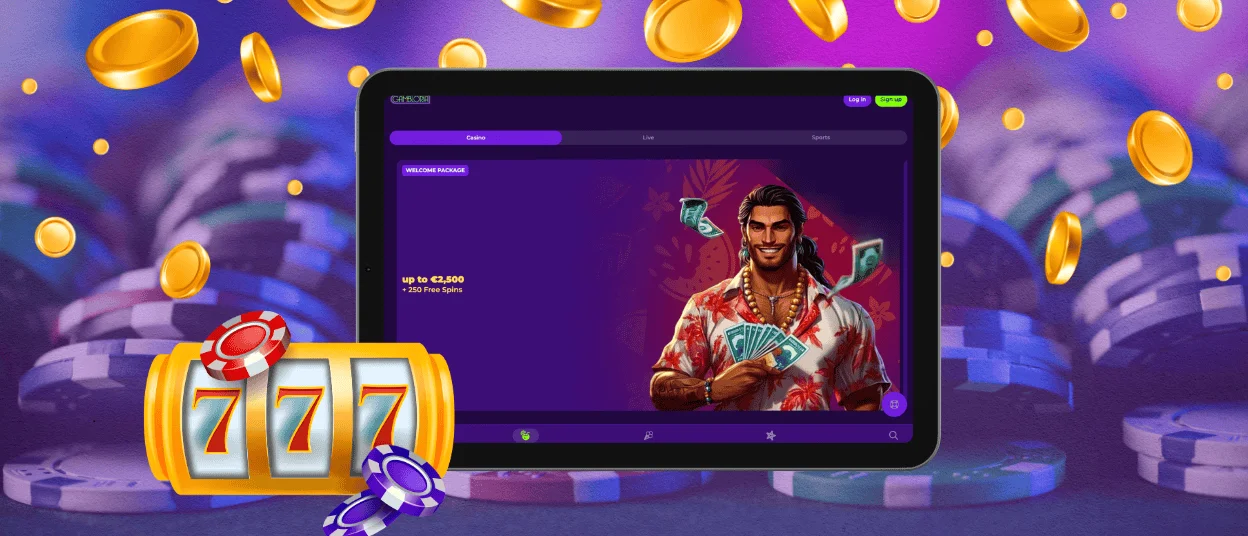
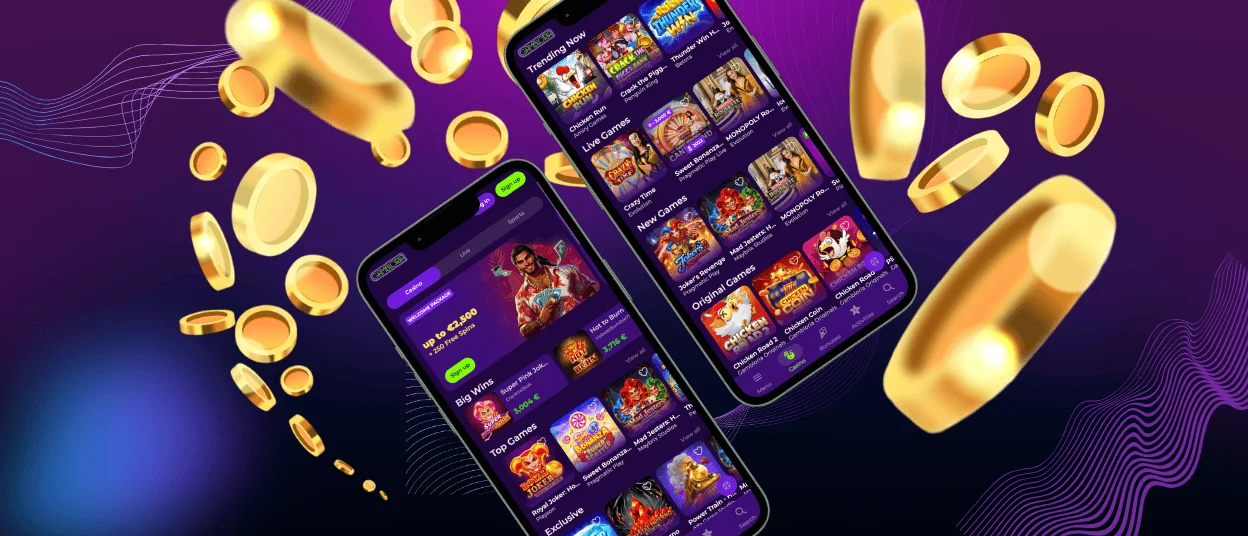
The Gambloria app brings the full casino to any device a player picks up. It runs on phones, tablets and computers, and the account stays identical on each one. Players reach the Gambloria Casino through a browser or add it to the home screen, and both paths open the same game library and the same balance. Our casino adapts to the screen size of any device you use.

What is the Gambloria PWA?
The Gambloria app is based on a Progressive Web App (PWA). This version of a website can be pinned to the home screen and launched like a native app, without the need to download anything. A PWA takes up virtually no space on your device. It updates automatically with every website update, so players don’t need to install updates manually. A single tap on the icon opens the games, and you don’t need to enter the web address every time you visit.
Gambloria Casino on Android
You install the Gambloria app on Android straight from the website. The whole setup takes three simple steps:
- Open the Gambloria website on your phone.
- Tap the menu in the top-right corner (the three dots).
- Select “Add to Home Screen” and confirm.
The icon then sits on your home screen. Tap it to open the casino and reach the full library, from slots and live dealer tables to crash games. The layout fits your screen size and keeps the design of the desktop site.
Gambloria Casino on iOS
iPhone and iPad users add the Gambloria app through Safari. The setup takes about three minutes:
- Open the Gambloria website in Safari.
- Tap the Share button (the square with an upward arrow).
- Choose “Add to Home Screen,” then tap “Add.”
Once added, the casino is one tap away on the home screen. The app sends push notifications about new promotions and game releases. The menu, banners, and game zone keep their place on iPhone and iPad.
Application for Windows/macOS
The platform opens on Windows and macOS in any modern browser. You install no extra software. These browsers load the full site:
- Chrome
- Firefox
- Safari
- Edge
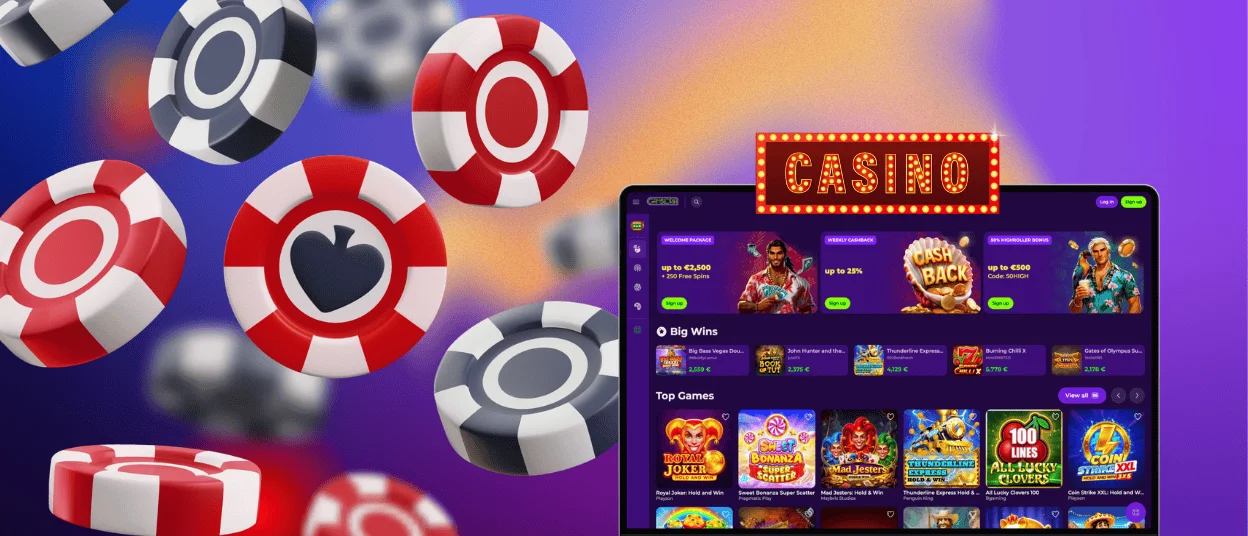
To reach the casino faster, create a desktop shortcut. In Chrome, open the menu and select “Create shortcut,” and the Gambloria icon lands on your screen. The larger display gives you more room to browse the game zone, follow live streams, and manage your account.
One Account Across Devices
You keep one account for every device. The moment you log in, everything is exactly the same: your balance, your games played, your account details. You start a session on your computer and continue it on your phone without losing progress. Play on one device at a time — parallel logins trigger our security checks.
FAQ
What should I do if the Gambloria app crashes or freezes?
Reload the app first, because the PWA pulls a fresh version from the site. If the issue stays, clear the browser cache or reinstall the icon from the website. If the problem still exists on your side, our support team will help you to fix it.
Can I upload verification documents through the mobile application?
You can enter all the necessary information from your profile inside the Gambloria app. Open the verification section and attach the requested files. We’ll review them before your first withdrawal.
Does the Gambloria app use a lot of mobile data?
The PWA itself consumes very little data as it’s a shortcut to the site. Live dealer streams use more traffic than classic titles so a Wi-Fi connection keeps usage low. You can play the same games on mobile internet anytime you want.


